
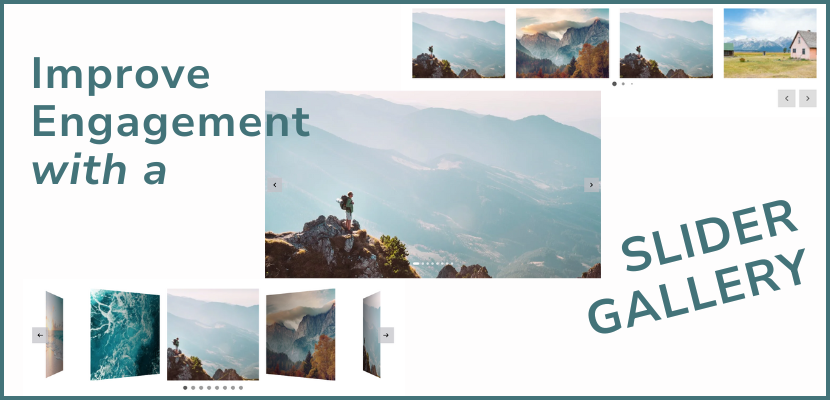
Learn how to add a slideshow to your website design. A slideshow is a great way to improve user engagement by showcasing multiple visuals in a single space, making your website more modern and exciting. Follow this video to see how to customize a slider gallery for your website:
Video transcript below:
Hi everyone! Here is a video tutorial to show you how to add an image slider also known as a slideshow to your website.
A slideshow is a great way to improve user engagement by showcasing multiple visuals in a single space, making your website more modern and exciting.
Here’s how to easily add a slider gallery to your website.
So I’ve already logged into my website, and now let’s say I want to add a slider gallery under the welcome section.
We’ll click Add Section, and then choose Slider Gallery.
Now you’ll see the different types of slider galleries here. We’ll start by picking this large one.
Now hover and click Add Section.
We’ve added it here.
You can add a title and description for the gallery section that will appear at the top here.
Now let’s start customizing the gallery.
So we’ll click right on it here.
We’ll see that we’re now customizing the first slide.
You can click here to change the image, and you can upload and change it directly, or select from files.
So we’ll choose select from files.
Now you can upload an image to your file library to use in your gallery, or even choose one of the stock photos that are free for you to use.
So we’ll change the image.
And now you can adjust the image to fill the gallery display, or fit within it.
And depending on that choice, you can also adjust the position of the image as well.
Now you can also choose to add a link, so when visitors click on this image slide, it will lead them somewhere.
So let’s look at those options.
Let’s say we chose Lightbox, that means the when visitors click on this image, it will open up into a lightbox, where the rest of the website is dimmed and the image is enlarged and in focus.
If you add a title and description to this image slide, it will also appear in the lightbox as well.
So let’s save that.
And Alt Text is so important for your SEO and to make your website more accessible to users.
That means that if the image does not load, it will show the Alt Text, so you want to describe the image exactly as it would appear.
Now that I’ve edited this slide, you can click on the arrow up here to go to the next slide image and continue editing. Or, we can click Back.
If you scroll, you’ll see that you can edit the slide images for this slider section by clicking on it.
Or beside each slide, you can click the pencil icon, you can change the order of the slide, or delete it from the gallery.
If you want to add a new slide to the gallery, just click add image.
Now let’s get to customing the display settings for this gallery.
So scroll to where you see Change Colors and Layout under Gallery.
Now you can change the gallery design altogether here, and we’ll leave that for now,
But here you can choose to change the Media Aspect Ratio, which is the aspect ratio of each image within the slider.
You can choose to make the entire gallery full width.
You can also add padding above or below the gallery section.
Now you can choose the slideshow settings.
If you toggle on autoplay, once visitors land on the page with the slider, the images will automatically move through the slideshow, without visitors needing to click any navigation arrows.
You can also choose to have the images loop, or if you would like it to be apparent that the last image in the slideshow has been reached.
If the images loop, then when it reaches the last slide, whether visitors click the navigation arrow to move forward, or if the slider is on autopay, it will go smoothly go back to the first slide without breaking up the flow of the slider.
You can choose to show the navigation arrows, so visitors can scroll through the slideshow by clicking on the arrows, and you can choose the style of the arrows, and whether you want the arrows to show on the slider parameters, or below the slider.
Now you can also slide pagination, which shows visitors which slide they are in on the slider.
Some of the pagination types, like dots, also gives them a way to interact with the slider by choosing to directly jump to a specific slide by clicking on the pagination indicator.
You can choose how to display the pagination, for example dots, progress bar, etc.
Now if you want to change the design of the gallery, let’s take a quick look at the other slider gallery designs.
We can simply click Change Design here, and now let’s scroll down and choose this slider design.
We’ve clicked on that, you can see roughly how it would look in this preview, and now click Apply Design on the top. So you can see that for this slider, you can show multiple images at once.
One more setting that you can change for this design os that you can choose the maxim columns per row.
So you can choose just to show 2 or 3 images at a time.
Now let’s go ahead and look at one more slider design.
So we’ll scroll and click Change Design.
And this design is similar to as it shows multiple images at once, but this one puts the focus on the image in the middle, while the images around the centre image are a preview, and the effect as you go through the slider is as if the images are slowly being revealed once they reach the middle.
So this slideshow can add some excitement and originality to your website design.
So let’s publish and look at the live version of our website.
So here is the slider.
And now you can see how the slider will look on the published website.
So that’s it for this video! As you can see it’s very easy to add a slider to showcase images on your website in a dynamic way, perfect for photographers, artists, and anyone looking to showcase images in a stunning way.
We hope this video was helpful, and thanks for watching!