
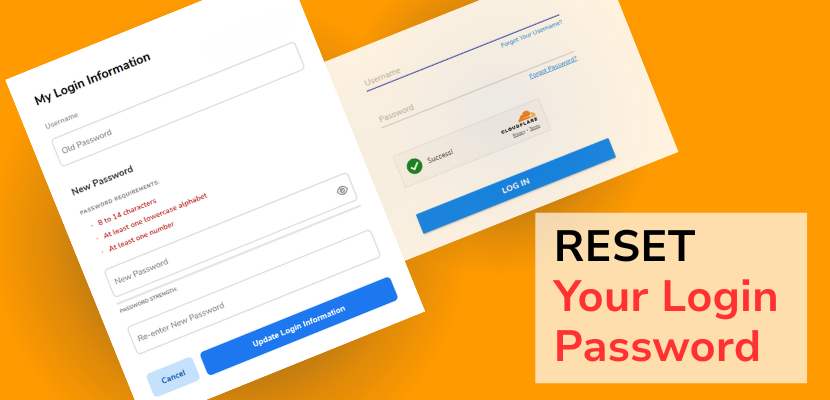
Want to know how to reset your password to log into your Website.com account? This tutorial will show you 2 methods: 1)How to change your password in your member dashboard for security purposes, and 2)how to change your forgotten password to allow you to log into your account.
1) How to change your password for security reasons:
Changing your password periodically is a great security practice to prevent your account from being hacked.
- Log into your Website.com account.
- In the Member Dashboard, look to the left and choose My Account > Password and Security
- Click the first button to Edit Login Information
- Enter your old password, and then choose a secure password that fulfils the requirements.
- Click Update Login Information and you’re done!
2)How To Reset Forgotten Password
- Forgot your password and need to log into your account? Not to worry! You can easily reset your password.
- Click Login on the Website.com site menu.
- Under the password field, click “Forgot Password?”
- After your enter your username, an email to reset your password will be sent to the email on file as the domain owner contact.
- Open that email and follow the link to reset your password. (If you don’t see the email in your inbox, be sure to check your spam and junk mail!).
Want to watch a step by step tutorial? You’ve got it!
Looking to reset your domain email password? Read this article.